How do I scan to editable text e.g. Word?
 |
 |
Creating editable documents from paper copiesIt is possible to create electronic versions of paper documents by using the scanner to scan text and convert it to an electronic version which can then be edited in an application such as MS Word. There are a few things to remember when doing this :
From the HP Director window select the 'Scan Document' option. You will be presented with the following options :
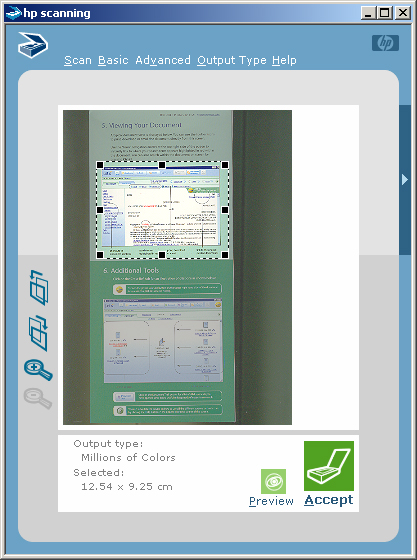
You should select the option that best fits your situation. The main difference between all of these options is the size of the resulting file and the quality of the PDF image and colour or black and white. Once the scanner completes its first scan of the glass you should see the following window (below) which will display your image. In this window you can choose what area you actually want scanned by 'grabbing' the black squares on the dotted selection zone and resizing the window. The area that will not be scanned will be grayed out. In this example we have selected the middle part of the image that we want. Click the 'Accept' icon to finalize the scan. Once scanned you will then be asked if you want to add another page to the current document. If you have more pages to scan to create a multi page PDF document then click 'Yes' and you will repeat the process above. When you click 'No' to indicate that this is the last page, you will be prompted to save your document. Give your document a name and make sure the save location is in your home directory. You also need to change the 'Save as type' to Rich Text File (*.rtf) by selecting it from the drop down box. RTF format is a generic format that most word processors can open. Once your RTF file has been saved you should proof read the document in a word processing application. Further information on scanning can be found on the Computing Service web pages. |